 ChatGPT
 Claude
 Perplexity
 Gemini
 Grok
GrokOne line of code, 48 hours, zero IT project
Integrating an AI chatbot into a university website does not require a site redesign, a six-month IT project or a six-figure budget. The technical reality is simpler than most admissions teams expect: a JavaScript snippet to insert into your site, a content configuration specific to your institution, and the chatbot is live within 48 hours.
This article covers every step: technical prerequisites, script insertion, initial configuration, CMS compatibility, CRM connection and pre-launch testing. The goal is that your team — even without a dedicated developer — understands exactly what integration involves.
To understand what an AI chatbot can do for your institution, start with our complete AI chatbot guide for schools.
Technical prerequisites: what to check before you start
Access to the site's code
The only technical prerequisite is the ability to insert a script into the <head> or <body> of your website. In practice, this means:
- Admin access to your CMS (WordPress, Drupal, Joomla, Webflow, Squarespace or any other)
- Or access to the source code if your site is custom-built
- Or a web agency that can add a script in 10 minutes
No database changes, no server installation, no updates to your existing infrastructure are needed. The chatbot operates in SaaS mode: the script loads the interface from the provider's servers; your site hosts nothing.
Institutional content
The chatbot needs to be trained on your institution's specific data. Prepare before deployment:
| Document | Purpose | Ideal format |
|---|---|---|
| Fee schedule | Answer tuition queries | PDF or web page |
| Entry requirements | Criteria, deadlines, required documents | PDF or web page |
| Programme pages | Description of each course | Existing web pages |
| Open day dates | Upcoming events | Structured list |
| Existing FAQ | Already identified common questions | Text document |
| Admissions contacts | Names and emails for human handover | List |
Most of this content already exists on your website. The chatbot ingests and structures it automatically. Typical preparation time: half a day to gather and validate documents.
Script insertion: three minutes, not three months
The technical principle
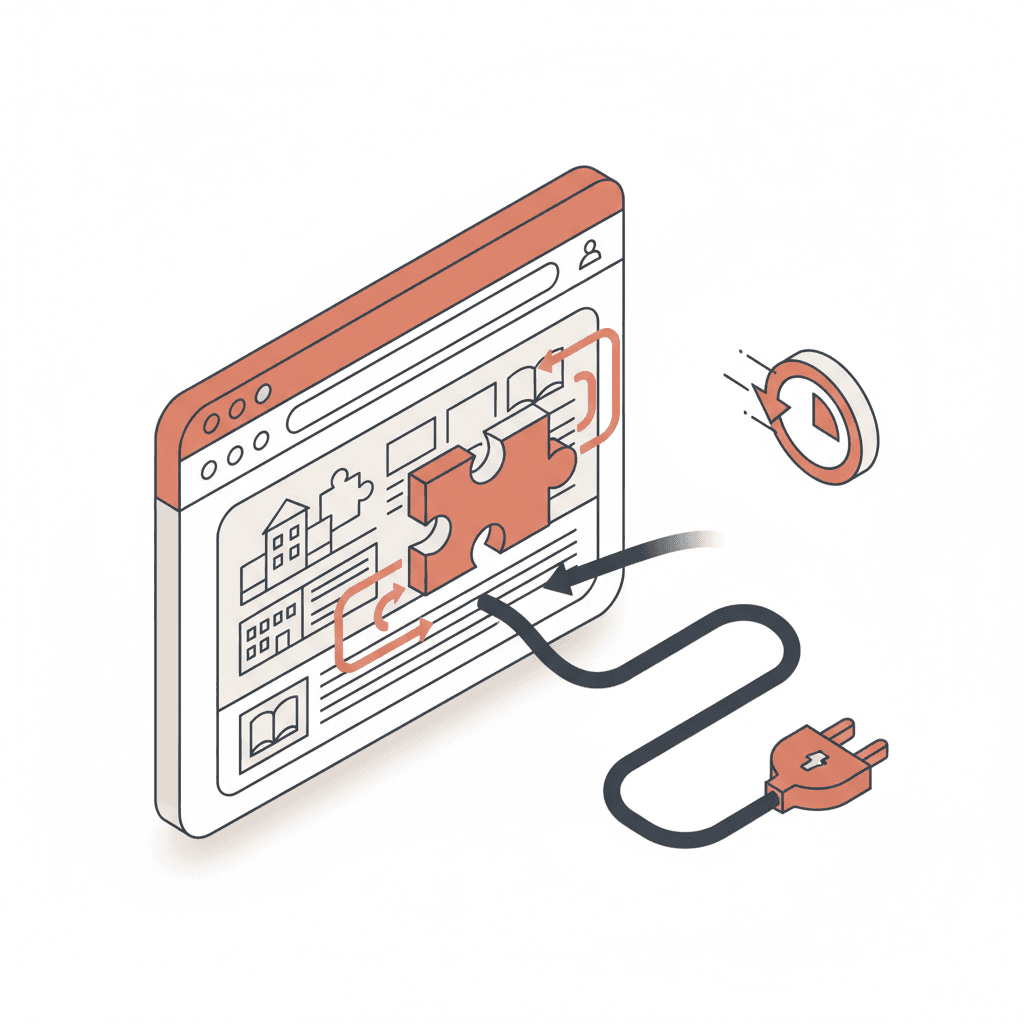
Integration boils down to pasting a code snippet into your site. This script loads the chatbot widget, manages the conversation bubble display and communicates with the AI servers to generate responses. The script is asynchronous: it does not slow your site's loading time.
Compatibility by CMS
The process varies slightly by CMS but remains straightforward in all cases:
| CMS | Insertion method | Estimated time |
|---|---|---|
| WordPress | Header/Footer Scripts plugin or functions.php | 5 min |
| Drupal | HTML block or Asset Injector module | 10 min |
| Webflow | Project Settings → Custom Code → Head | 3 min |
| Squarespace | Settings → Advanced → Code Injection | 3 min |
| Wix | Settings → Custom Code → Head | 5 min |
| Custom site (HTML/React/Next.js) | Direct template insertion | 5 min |
| HubSpot CMS | Settings → Website → Pages → Header HTML | 5 min |
None of these CMS platforms poses a technical difficulty. If your site runs on an unlisted CMS, the method is the same: find where to insert code in the <head> and paste the script.
What if I do not have code access?
If you do not have technical access to the site, two options:
- Your web agency: send them the script with the instruction "add to the head of all pages". Work time: 10 minutes. Cost: often included in your maintenance contract
- Google Tag Manager: if GTM is already installed on your site, the script can be added as a custom tag without touching the site code
Initial configuration: customising the chatbot for your institution
Content setup
Content configuration has three layers:
1. Basic information
Institution name, logo, brand colours, website URL. The chatbot widget adapts visually to your identity.
2. Knowledge base
The chatbot ingests the documents you prepared (fee schedule, programme pages, FAQ). It automatically indexes the public pages on your site to complete its knowledge base. Processing time: a few hours after document upload.
3. Conversation scenarios
Scenarios define the standard journeys:
- Welcome: opening message, language detection, topic suggestions
- Open day registration: intent detection, data collection, confirmation (see our article on automatic open day registration)
- Human handover: when and how the chatbot transfers the conversation to an adviser
Tone customisation
The chatbot adopts your institution's voice. A premium business school does not use the same vocabulary as a tech bootcamp. Tone configuration includes:
- The level of formality
- Sector-specific terminology
- Welcome and closing phrases
- Multilingual support (if your institution recruits internationally)
CRM connection and existing tools
Why connect the chatbot to your CRM
Without a CRM connection, data collected by the chatbot sits in a silo. With the connection, every prospect identified by the chatbot automatically creates or enriches a record in your CRM. The admissions team sees:
- The prospect profile (name, email, phone)
- The programme of interest
- The conversation history
- The maturity score
- Actions taken (open day registration, brochure request)
Common integrations
| Tool | Method | Setup time |
|---|---|---|
| Salesforce | Native API or Zapier | 2–4 hours |
| HubSpot | Native API or Zapier | 1–2 hours |
| Dynamics 365 | API or connector | 2–4 hours |
| SITS / Banner | Webhook or CSV export | 4–8 hours |
| No CRM | Built-in Skolbot dashboard | 0 min |
If your institution does not use a CRM, the chatbot provides its own dashboard for tracking prospects, conversations and open day registrations. No need to invest in a CRM to get started.
Testing and go-live
The validation checklist
Before activating the chatbot on your production site, validate these points:
- The widget displays correctly on desktop, tablet and mobile
- Colours and logo match your brand guidelines
- The chatbot answers the 10 most common prospect questions correctly
- The open day scenario works end to end (detection → registration → confirmation email)
- Human handover works (the adviser receives the conversation with full history)
- The CRM receives data if the integration is configured
- The chatbot complies with your privacy policy (GDPR notice, cookie consent)
- Site loading time is not degraded (verifiable with PageSpeed Insights)
Once integrated, learn how to train your chatbot on your school's data to ensure accurate, institution-specific responses.
Phased deployment
The recommended approach is a two-phase rollout:
Phase 1 — Soft launch (week 1)
Activate the chatbot only on high-traffic pages: homepage, programme pages, admissions page. Monitor conversations, identify unanswered questions, adjust the knowledge base.
Phase 2 — Full deployment (week 2)
Extend the chatbot to the entire site. Activate advanced scenarios (open day registration, follow-up). Connect alerts for the admissions team.
Post-deployment: metrics to track
The chatbot generates actionable data from week one. Key indicators:
| Metric | Target | Why |
|---|---|---|
| Engagement rate | > 15% of visitors | Measures widget attractiveness |
| Satisfactory response rate | > 85% | Knowledge base quality |
| Open day registration rate | > 15% | Scenario performance |
| Human handover rate | < 10% | Chatbot handles the majority of cases |
| Bounce rate impact | −30% minimum | Chatbot retains visitors |
Websites equipped with an AI chatbot see their bounce rate drop from 68% to 41% and session duration double from 1 min 45 s to 4 min 12 s (Source: A/B test across 22 institution websites, Sept–Dec 2025).
For a full ROI analysis, see our student chatbot ROI calculation. To understand how the chatbot compares to a contact form, read our chatbot vs contact form comparison.